





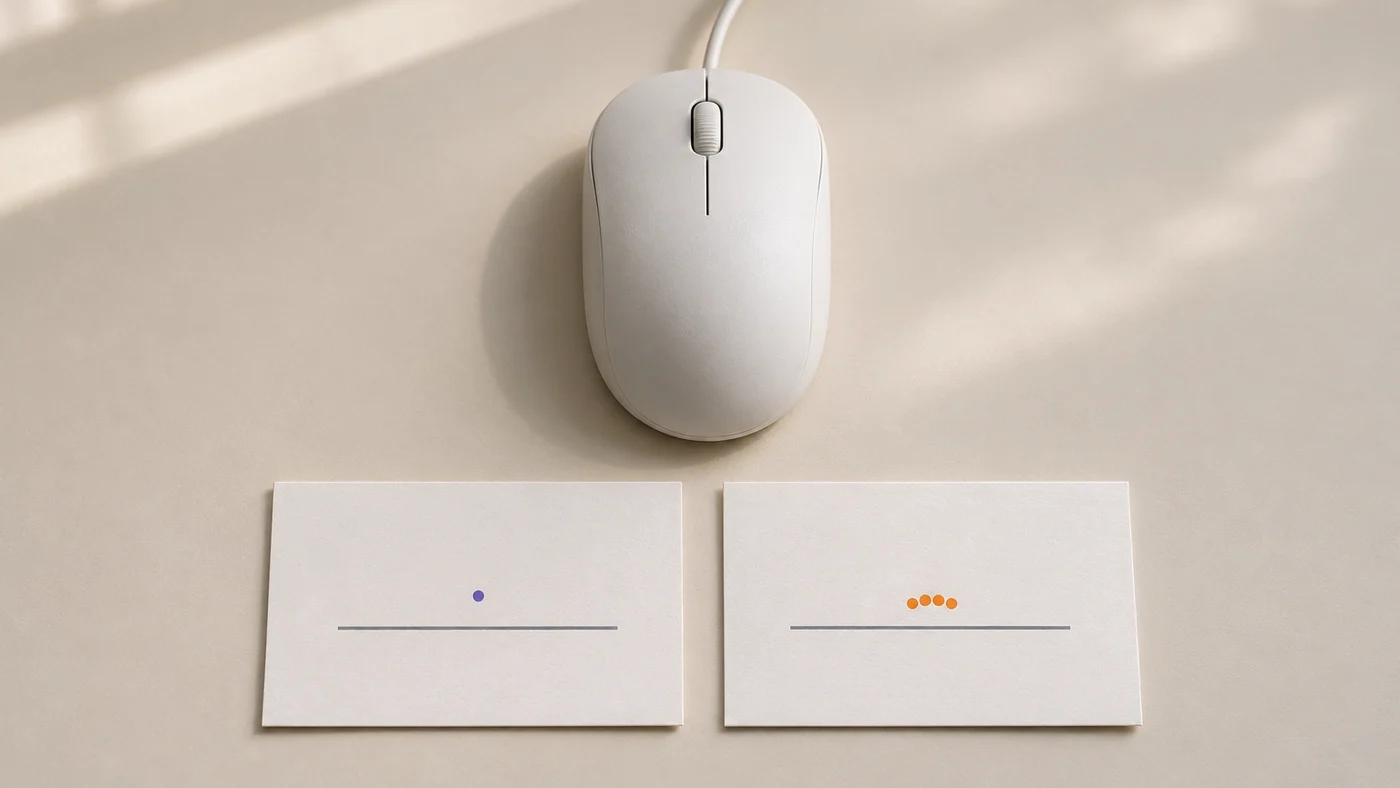

A customer taps “Check availability” once and sees nothing. A second customer presses the same button repeatedly. Microsoft Clarity’s dead clicks and rage clicks tell you where to look. Replay the interaction before deciding what to fix.
Read the clue from each label
| Label | What Clarity detects | What to check in the replay |
|---|---|---|
| Dead click | A click with no feedback in a reasonable period. | Did the button change, show a message or navigate? Was a response delayed? |
| Rage clicks | Multiple clicks close together in position and time. | What did the user expect? Did the clicks continue after the first visible response? |
In Microsoft’s public demo, we used the Dead clicks card’s recordings button. The recordings view opened with Dead clicks: Yes applied. Both labels are available in the dashboard. You can also inspect the affected element on the corresponding click map.
Reproduce one tap, then repeat it
We built a local, fictional phone-repair booking page. One button logged the click but left its status blank. A second button showed “Checking availability…” immediately and then displayed a fictional slot about 0.9 seconds later.
The first tap on the control produced no visible response. Four clicks over 820 milliseconds still left the status empty. The second button gave a visible response on the first tap. The test measured browser feedback on a local fixture. The fixture had no Clarity tracking or booking service, so the observed timing establishes neither a Clarity detection threshold nor a booking result.
Choose a fix from the recording
- Filter to the affected URL and device. Use the click map or dashboard link to open a relevant recording. Watch from before the first click until the user sees a result or leaves.
- Reproduce the action under similar conditions. If a decorative card looks tappable, change its styling or give it the intended action. If a real button sends the request but then waits silently, add progress and check the response time. If the request fails, show an error and let the visitor retry.
- Retest one tap and several quick taps. On a booking form, check that repeated taps do not create duplicate requests and that an error leaves a route to retry. Verify the success event separately if you track it.
A click and a completed enquiry are separate events. Use the form submission tracking guide to verify that outcome. If the problem sits in a store checkout, use the checkout journey guide to identify the affected step.
Frequently asked questions
What is the difference between rage clicks and dead clicks?
Rage clicks describe the timing and grouping of repeated clicks. Dead clicks describe the lack of a response after a click. Use the replay to check what the visitor actually saw.
Does a dead click mean the button is broken?
Check the interaction first. The visitor could have clicked a decorative element, or a working button could have responded too slowly.
How do I confirm that the fix worked?
Repeat the same interaction on the affected device and verify the response. Check subsequent recordings and the success event for that flow if it is tracked.