





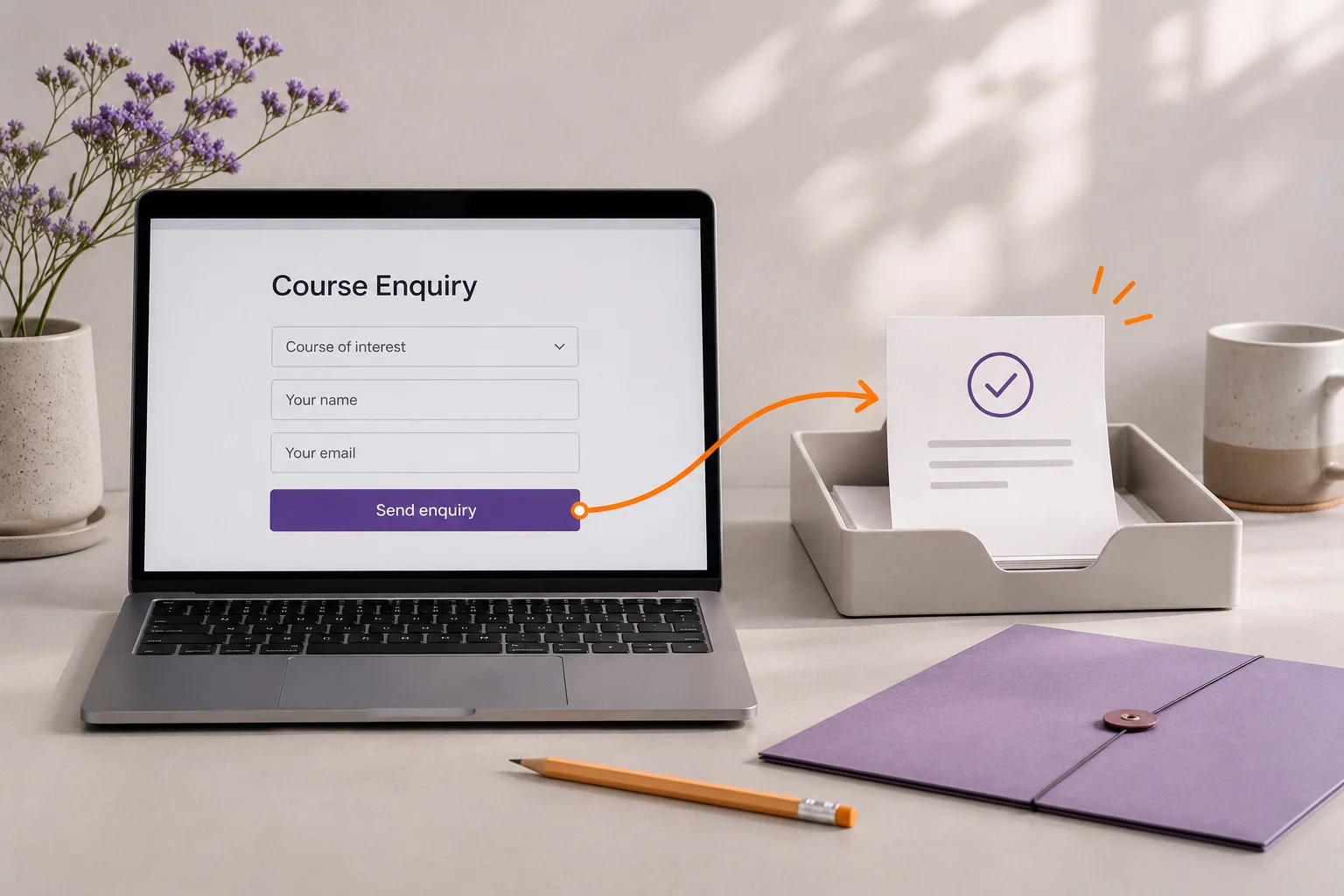

To track a successful form enquiry in GA4, send the event after the website confirms that it accepted the submission. A click on “Send,” a browser submit event and a received enquiry are different stages.
This guide uses a course-enquiry form as a teaching example. The same approach works for a repair booking or quotation request when the form provides a reliable success signal.
Define What “Successful” Means
Agree with the person maintaining the form on the exact signal. For example: the server validates the request, saves the enquiry and returns an accepted response that the browser can identify.
A generic HTTP 200 response is not enough if the response body can still contain a validation error. A success message displayed before the server replies is not enough either.
| Stage | What it tells you | Count as the confirmed lead? |
|---|---|---|
| Button clicked | The visitor tried to continue | No |
| Form submitted by the browser | The form initiated its submission path | Not by itself |
| Application confirms acceptance | The defined enquiry was accepted by the application | Yes, for this measurement definition |
| Team qualifies the enquiry | The request is relevant and actionable | A separate business stage |
If the form only opens WhatsApp with a draft message, use WhatsApp click tracking. Opening another app does not prove that the message was sent.
Choose One Route for the Lead Event
GA4 enhanced measurement can collect form_start and form_submit. These are useful interaction signals, but their names do not establish that your server stored an enquiry. Test the behavior of your particular form.
For a form that submits without a page reload, use its documented success callback or a developer-provided event after acceptance. For a dedicated thank-you page, confirm that it is reached only through a successful submission; direct visits and reloads need separate handling.
Choose one path that sends the confirmed lead event. Do not send it once from the success callback and again from a thank-you page for the same submission.
Send the Confirmation to the Data Layer
Ask the developer to place the following message in the confirmed-success path. It belongs in the form application's accepted-success callback. It is a tracking message, not a form handler or server endpoint; a page-load tag would count page loads instead of confirmed enquiries.
// Run only after the application confirms a new enquiry was accepted.
window.dataLayer = window.dataLayer || [];
window.dataLayer.push({
  event: 'lead_form_success',
  form_id: 'course-enquiry',
  lead_type: 'course_enquiry'
});
Keep the event name stable and use fixed category values. Ensure the application emits the message once for each newly accepted submission, including when it retries a request or the success callback runs again.
Do not include a name, email address, phone number or message text. Also check that the page URL and form destination do not expose those details in query parameters. Data-redaction settings provide additional help; they do not replace clean event design.
Configure the Trigger and GA4 Event
Use the existing GTM container and GA4 setup for the site. You need suitable editing permissions and the correct web stream's measurement ID.
- In GTM, create Data Layer Variables for
form_idandlead_type, matching the names sent by the application. - Go to Triggers → New → Custom Event. Enter the exact event name
lead_form_success. Keep regex matching off unless a specific requirement calls for it. - Create a Google Analytics: GA4 Event tag for the intended measurement ID. Set its event name to
generate_lead. - Add the event parameters
form_idandlead_type, using the two Data Layer Variables as their values. - Attach the custom-event trigger. If this tag is only for the course form, restrict it to
form_idequalscourse-enquiry.
The names have different jobs: lead_form_success is the website-to-GTM signal; generate_lead is the event sent to Analytics. Neither name automatically qualifies the lead or deduplicates repeated submissions.
Test Success, Failure and Duplicates
Open GTM Preview, connect the site and test the complete form on your own device. Tag Assistant enables debug activity for that device; check the expected analytics consent state before interpreting missing events. Inspect the data-layer event and the GA4 tag fired for it. In the correct GA4 property, use Admin → Data display → DebugView to inspect your debug activity.
| Test | Expected confirmation events under the test conditions |
|---|---|
| Click Send with a required field empty | 0 |
| Server rejects the submission | 0 |
| One newly accepted enquiry | 1 |
| The same success callback runs again | Still 1 for that accepted submission |
| Refresh or revisit the confirmation page without a new enquiry | 0 additional events |
| A genuinely new enquiry is accepted | 1 additional event |
Run the checks on mobile as well. Confirm that the expected consent settings are respected. If consent or a blocker prevents Analytics collection, the application can receive the enquiry while GA4 records no event.
Once the tests pass, publish the GTM version and repeat a controlled check on the published site. Preview success alone does not establish that the live container contains the change.
Use the Event in Reporting
In GA4's Events settings, mark the intended generate_lead event as a key event when it represents an important action. This does not repair the trigger or turn old button clicks into confirmed submissions.
If you need to break reports down by a custom parameter such as lead_type, register an event-scoped custom dimension for it. Check reporting availability after processing; DebugView and ordinary reports have different purposes.
Keep received enquiries and qualified enquiries in the business's own records. Our Search Console and GA4 comparison explains how to connect visibility and measured visits without expecting identical totals.
Frequently Asked Questions
How Do I Track Form Submissions in Google Analytics?
Define the submission you want to measure, connect a reliable success signal to an event and test it. For confirmed enquiries, use application acceptance rather than a button click alone.
Is the Automatic form_submit Event Enough?
Only if testing shows it represents the outcome you intend to measure. Enhanced measurement detects form interaction; it does not independently verify your enquiry database or inbox.
Can I Do This Without Editing the Form Code?
Sometimes. A form plugin may expose a documented success event, or a protected confirmation flow may provide a suitable signal. If neither exists, ask the developer to add one instead of guessing from the button click.
Does generate_lead Mean a Sale?
No. Here it means the application accepted an enquiry. Qualification, booking and payment belong to later stages that need their own evidence.