





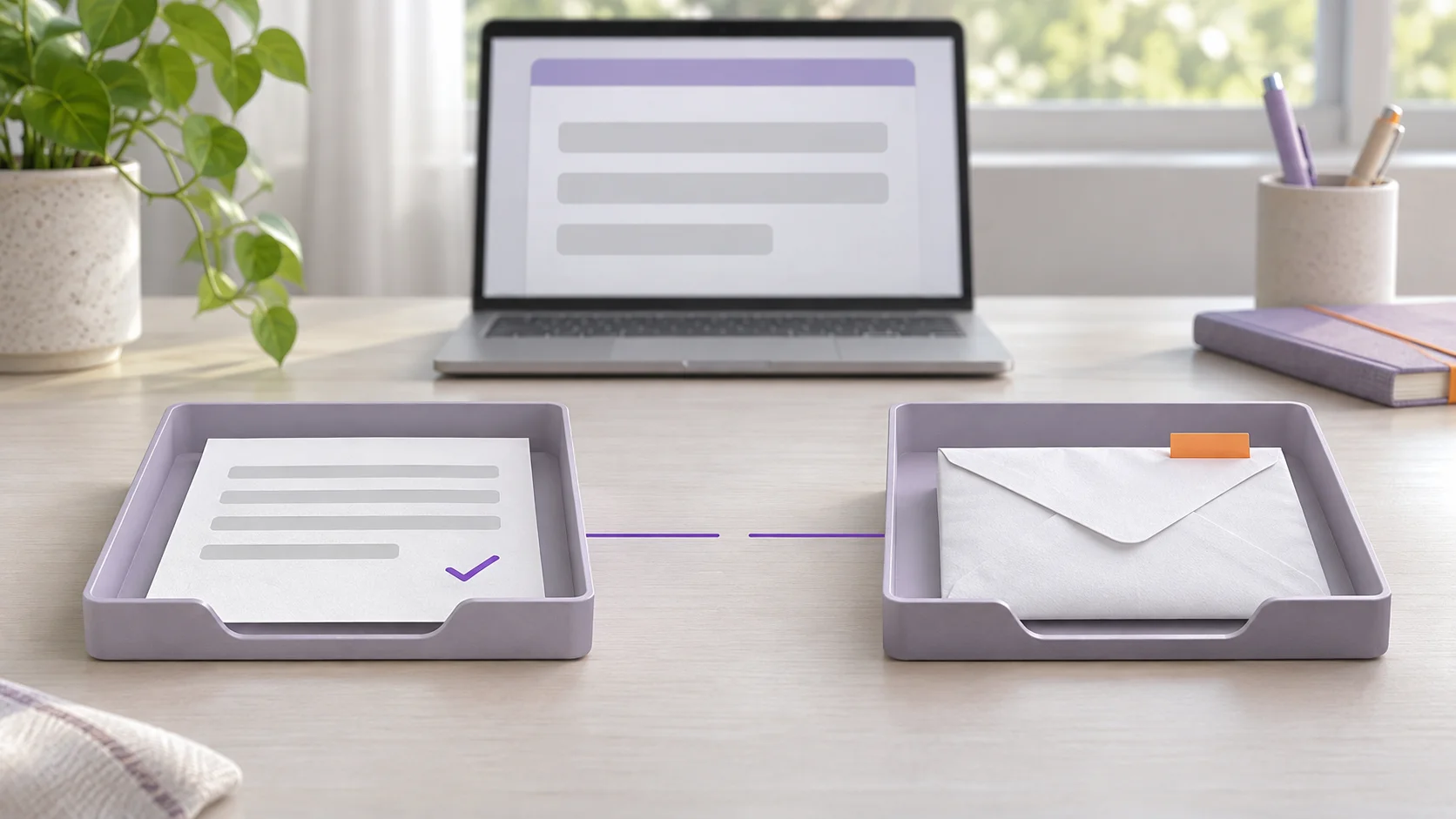

A WordPress form can accept a submission without delivering its notification email. Separate the form action, any saved entry, the sending attempt and the recipient's mailbox. Each stage needs its own evidence.
Start with one controlled test submission to a mailbox you own. Keep the test time and form name so you can follow the same message through the available records.
Check What the Form Actually Completed
Open the form plugin's settings and confirm what success means for that form. A visible thank-you message or an analytics event does not prove the enquiry was saved or emailed.
Not every plugin stores entries. Contact Form 7, for example, does not store submitted messages by itself; its Flamingo extension provides that function. Check whether storage exists and is enabled before looking for a missing database entry.
For an education centre's enquiry form, first verify that the test submission was accepted. If storage is configured, locate the corresponding entry. If the enquiry never reaches that stage, troubleshoot validation or form processing before changing the mail server.
The form-tracking guide helps keep the analytics event aligned with the intended successful action. It is still separate from email delivery.
Verify the Notification Settings
| Setting | What to check |
|---|---|
| Recipient | The intended business mailbox, without a typo or unintended conditional rule |
| Notification enabled | No demo, skip-mail or disabled-notification setting prevents sending |
| From | A sender identity permitted by the actual mail service |
| Reply-To | The visitor's reply address, using the plugin's supported mail tag |
| Message fields | The notification template includes the required submitted values |
Do not impersonate the visitor's Gmail or Yahoo address in From. Use the approved sender and place the visitor's address in Reply-To when appropriate. Contact Form 7 recommends a From address on the site's domain.
For that plugin, check its Mail tab and Additional settings. Demo mode can show success without sending; skip_mail can skip notification while allowing other processing. Other plugins use different controls, so identify the actual setting rather than copying those names blindly.
Separate Mail Handoff From Receipt
WordPress uses wp_mail() to pass a message to the configured sending method. A true return means that method processed the request without errors. It does not prove the recipient received the message.
Inspect the available WordPress mail log or sending-service record for the controlled test. Record whether the message failed before handoff, was accepted by the sender, was rejected downstream or reached the recipient's server. Log access and detail depend on the setup.
If the host's local mail route is unreliable or unavailable, configure an appropriate authenticated mail service using its supported integration. An SMTP connection is a transport step; it does not guarantee inbox placement.
Ask the sender or host for the specific error or message reference. “Form email does not work” is less actionable than the failed stage and its timestamp.
Check Authentication and the Mailbox
Confirm the chosen sending service's domain setup. SPF identifies authorized senders, DKIM authenticates signed mail and DMARC checks alignment with the visible From domain and publishes a handling policy.
Use the actual provider's records and instructions. Do not paste a generic DNS recipe over an existing configuration or create multiple conflicting SPF records. Inventory legitimate senders before changing a domain policy.
On the receiving side, check spam, quarantine, mailbox rules, forwarding and storage limits. If a test arrives, inspect its headers privately; Gmail exposes them through Show original beside the message's reply controls.
Keep credentials, full customer messages and personal headers out of public screenshots or broad debugging exports. Retain only the detail needed to diagnose the route.
Retest the Real Form Path
- Use the actual form with controlled, noncustomer test content.
- Confirm its intended success response and saved entry if storage is configured.
- Find the matching sending record.
- Confirm receipt at the intended test mailbox and inspect the notification content.
- Test Reply-To and any important conditional notification path.
A mail plugin's test button does not exercise every form rule or template. Repeat the form's own path after the repair. If you suspect a server configuration issue, collect relevant context from WordPress Site Health.
Keep the working sender configuration and owner documented. Use the WordPress update workflow to recheck this enquiry path after changes that affect forms or mail.
Frequently Asked Questions
Why Is WordPress Not Sending Confirmation Emails?
Check the notification rule, recipient, sender identity and sending route. Confirm the form was accepted first, then trace that same test message through the available logs.
Does a Success Message Prove the Email Was Delivered?
No. It may show that the form completed its configured action. Storage, mail handoff and receipt are separate checks.
Will Installing an SMTP Plugin Fix Every Form Email Problem?
No. It can configure a sending route, but it does not repair a wrong recipient, skipped notification, broken template or receiving-mailbox rule.
Are All WordPress Form Submissions Saved?
No. Storage depends on the plugin and configuration. Confirm whether entries are stored before assuming missing mail can be recovered from WordPress.