





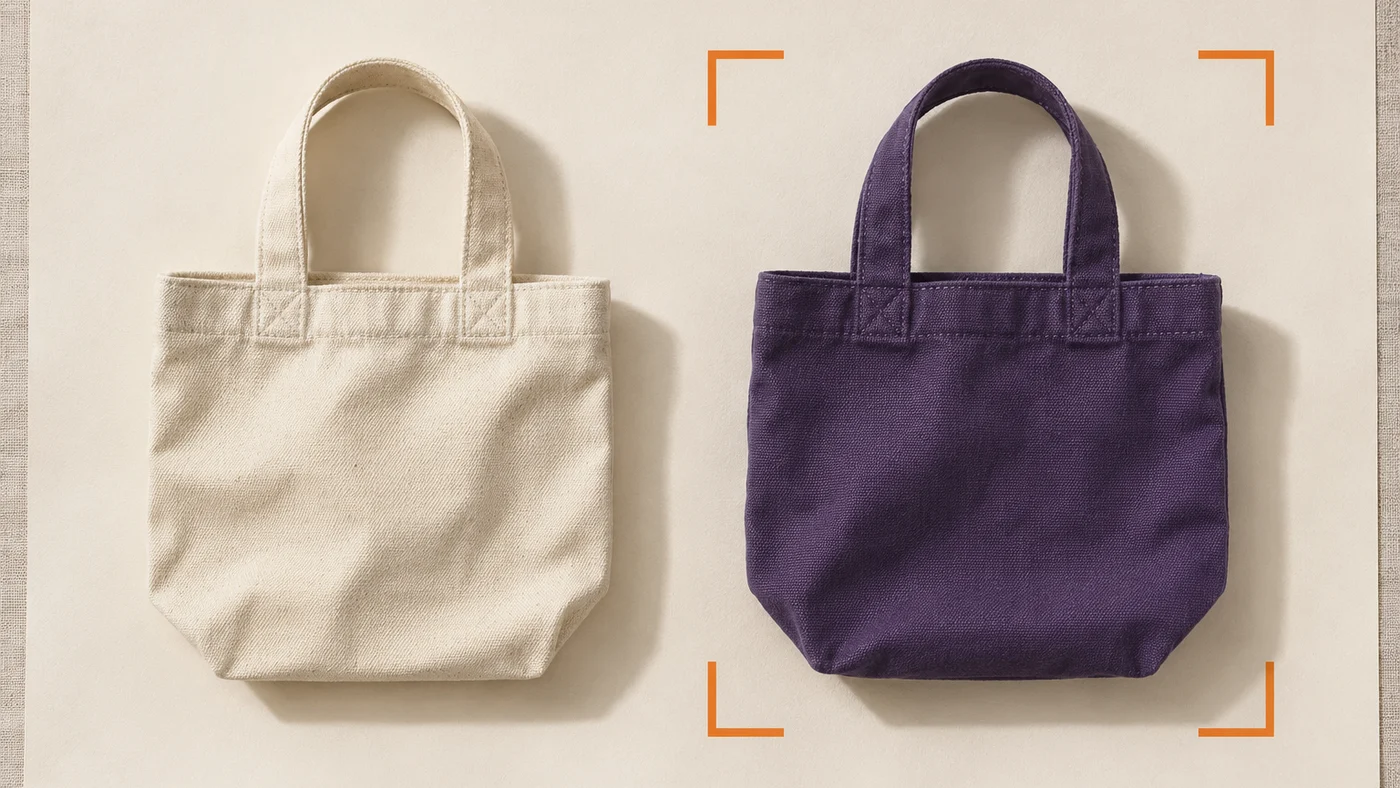

A Shopify variant deep link should open the requested option. On a single product page, the same link can declare the base product URL as canonical. Check the selected option and the canonical separately before changing your theme.
Open the base URL and one variant URL
In a worked example, a Shah Alam bag shop wants shoppers to land on the violet tote directly. Find the variant in Shopify admin and get its variant ID. Use the ID for that option from the same product. Add the ?variant= parameter to the storefront product URL using that ID. Test both addresses in fresh tabs so a previous selection does not influence the comparison.
| Example URL | Expected storefront state |
|---|---|
/products/canvas-tote | Natural canvas, RM39, in stock. |
/products/canvas-tote?variant=1234567890 | Violet canvas, RM45, in stock. |
For each URL, record the selected swatch, image, price and stock before touching the picker. On a test storefront, add the linked violet option to the cart and confirm the line shows violet at RM45. If the variant URL starts on natural canvas, verify the ID belongs to the product before troubleshooting the theme.
Read the canonical from the page source
View page source on each address and find rel="canonical" in the document head. Record its destination and check for conflicting tags in the rendered head too. In this single-page example, both URLs should declare the base product URL, without the variant parameter. Google’s product variant guidance uses one canonical for the product group in a single-page setup. See the product variants SEO guide for the wider choice between one page and separate variant pages.
Act on the check that failed
- Wrong option, correct canonical. Check how the product template uses
product.selected_or_first_available_variantfor its initial display and product form. - Right option, missing or conflicting canonical. Check whether the active theme or an app generates the canonical. Shopify’s Dawn theme uses
canonical_urlin its main layout. Check the live HTML before removing anything. - Both checks pass. Keep the variant URL for links that need the option preselected and use the base URL for links meant for the whole product.
Frequently asked questions
Where can I find the Shopify variant ID?
In Shopify admin, open the product and select its variant. When the admin opens a variant details URL, the number after /variants/ is the variant ID. You can also look up variant IDs in an inventory report.
Should I redirect a working variant URL to the base page?
Keep a working deep link if it selects a variant users need. A redirect that drops the parameter can remove the selection. The canonical and redirect guide explains what each does.
What if the page shows a different price only in one market?
Open the link in the market and currency for the affected offer. Verify the price of the requested variant and where the canonical points in that context. A different market can have a different price.