





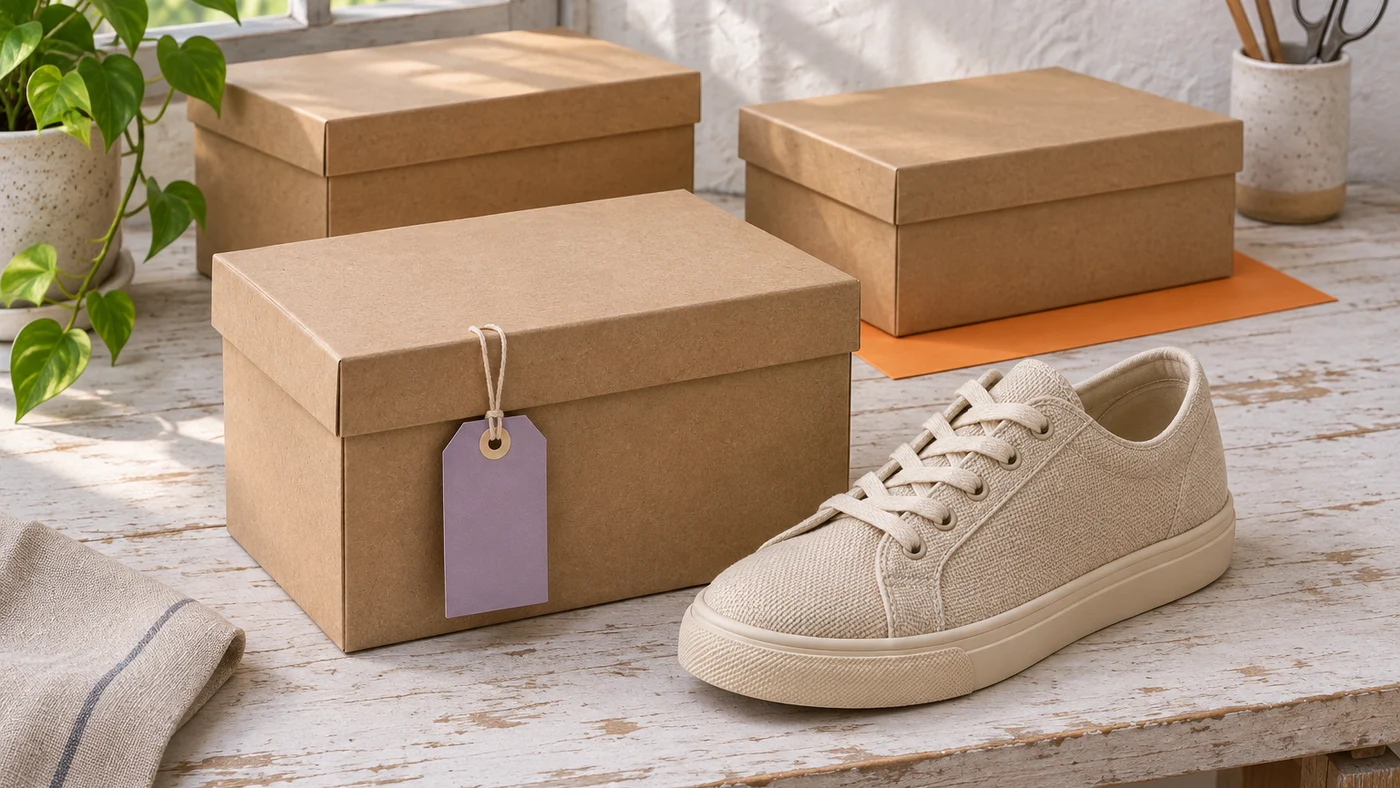

A kitchen supplies store wants its wipe-clean clogs to show higher when shoppers type “kitchen clogs.” Shopify Search & Discovery can boost a product for an assigned phrase. Check the phrase, the product’s availability and the actual search page before assuming the rule failed.
Start with one phrase and one product
In Shopify admin, go to Apps → Search & Discovery → Product boosts → Create product boost. Select the product, enter the phrase, add it and save. Shopify allows up to 10 search terms on a boost. Start with one that describes the product well enough that a shopper would expect it in the results.
A boost affects search within the store. Shopify documents eligibility for products available for sale, and excludes queries containing search syntax. The store’s combined listings settings can also affect whether the parent or child product is displayed.
Test four cases before broadening the rule
This is a worked plan for a fictional store. The targeted product is Wipe-clean kitchen clogs. The assigned phrase is kitchen clogs. Use the checklist to record what your storefront actually shows.
| Query and stock state | What to check |
|---|---|
kitchen clogs, available for sale | The configured phrase. Compare the product’s position before and after the change reaches results. |
kitchen footwear, available for sale | A related phrase. Run it separately before concluding that the configured boost applies there. |
title:kitchen, available for sale | This uses search syntax, so the product boost does not apply. |
kitchen clogs, unavailable for sale | The phrase matches the configuration, but the product is ineligible for the boost. |
Trace the result your shopper sees
- Collect a baseline. In Search preview, record the phrase, language and the product’s place in the results. Recheck after the change reaches results and compare with the actual storefront result for the same context.
- If the product is absent, check whether it can appear. Confirm it is available for sale and visible on the relevant sales channel. For a combined listing, check whether the settings show a parent, a child or both. Confirm whether an app other than Shopify’s built-in search serves the result page.
- Read the unboosted alternatives. Compare a related phrase before adding it to the boost. Add it only if the promoted product answers that shopper’s request. Record which phrase, product and storefront you changed.
Frequently asked questions
Will a Shopify product boost improve Google rankings?
The boost applies to Shopify’s online store search. Google Search has its own results and ranking systems.
Can a product unavailable for sale still get its boost?
Shopify says a product must be available for sale to be boosted. Check its sale availability before diagnosing phrase matching.
Why can’t I see the boosted product for my test query?
Check the assigned phrase, syntax and sale availability. Then verify the product’s visibility, combined-listing mode and which search system serves the page.