





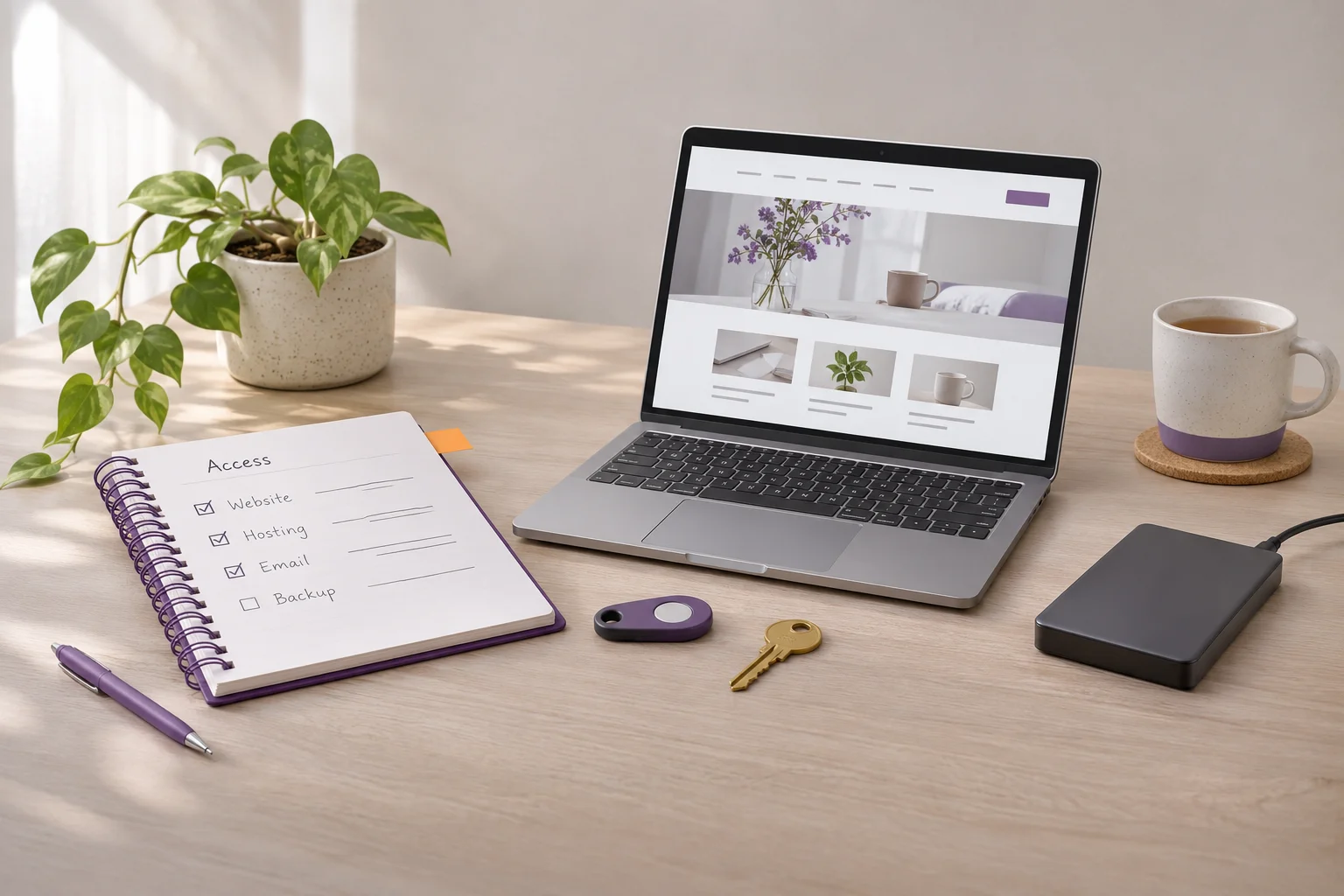

WordPress security maintenance is the ongoing work of keeping software current, access appropriate and recovery ready. It reduces risk; one plugin or configuration cannot guarantee that a website stays secure.
Start with responsibility. The owner needs to know who maintains the site, who can access it and what happens if a problem is discovered.
Assign Responsibility and Recovery Access
Record who controls WordPress administration, hosting, the domain, business email and backup storage. Keep recovery methods available to the business rather than only to a departed staff member or agency.
For an education provider, a content editor should be able to update class information without becoming the sole person who controls the hosting account. Likewise, the owner should not need an old developer's personal inbox to restore access.
Keep the record in an appropriately protected location. Store passwords in a suitable password manager, not in a public project document or the website's media library.
Review Users and Authentication
Open Users → All Users and review each account's role and purpose. Grant the capabilities needed for the job: publishing course content does not normally require full administration.
Review accounts after staff or supplier changes. Before removing an account, consider its content ownership and any operational dependency. Keep a reliable business-controlled administrator account.
Use unique strong passwords and supported two-factor authentication for privileged access. WordPress core does not provide a universal built-in 2FA setup screen; the chosen authentication provider or plugin has its own enrollment and recovery process.
Apply the same care to hosting and the recovery email. A strong WordPress password cannot compensate for an easily compromised account that can reset it.
Maintain the Software You Actually Use
Keep WordPress, themes and plugins supported and current through a tested update workflow. Use trusted sources and check the maintenance status of extensions handling important functions.
Inventory what the site needs. Remove genuinely unused plugins after checking dependencies and taking an appropriate backup. A theme marked inactive may still be the parent required by a child theme, so do not equate inactive with unnecessary.
For the education site, identify the form, booking and payment extensions and who monitors their notices. Reduce overlapping components when they serve no useful purpose, but test changes rather than deleting software solely to reach a target plugin count.
Keep Independent Recovery Copies
Schedule backups appropriate to how often the site changes. Keep both files and database, retain more than one recovery point and store copies separately from the live site's own files.
A booking site can collect records between maintenance visits. Decide how much recent activity the business can afford to reconstruct, then choose a backup frequency and retention policy that reflects that.
Test restoration in an isolated environment and document the route. The backup guide explains why a downloadable file alone is not proof of recovery.
Use a Small Maintenance Record
Make recurring work visible rather than relying on someone remembering to check a dashboard. Set the cadence according to site activity and risk; the following is an example owner schedule, not a universal requirement.
| When | Check | Useful record |
|---|---|---|
| As alerts arrive | Security, failed backup and availability notices | Owner, issue and action taken |
| At the planned maintenance session | Updates, backup status and a customer-path test | Versions, recovery point and test outcome |
| After staff or supplier changes | Users, roles and recovery access | Approved access changes |
| After material site changes | Forms, checkout, HTTPS and monitoring | The affected path and observed result |
HTTPS protects communication between the browser and server when correctly configured. It does not prove that installed files are clean, users are legitimate or extensions are up to date.
Use suitable logs and alerts to notice unexpected changes or repeated failures. A security tool can help with controls and monitoring, but it does not replace ownership, updates or recoverable backups.
Separate an Incident From Routine Maintenance
Unexpected administrators, unfamiliar redirects or suspected injected content deserve a response beyond the normal update checklist. Record the symptoms, relevant URLs and times, and contact the host or responsible security specialist.
Contain access and harmful behavior with their help, preserve useful logs and investigate the entry point. Blindly deleting files or restoring an old backup can destroy evidence and still leave the cause or compromised access unresolved.
After cleanup, verify the important public and administrative paths and revise the maintenance controls that failed. Use a protected test environment for recovery checks without exposing copied customer information.
Keep the incident contact and recovery plan accessible before an emergency. That makes the difference between knowing a problem exists and being able to coordinate a response.
Frequently Asked Questions
Is a Security Plugin Enough?
No. It may add controls and alerts, but software updates, appropriate access, backups and incident response remain separate responsibilities.
Does HTTPS Mean My WordPress Site Is Safe?
It means the connection can be encrypted. It does not establish that the website's code, accounts or content are free of compromise.
Does WordPress Include Two-Factor Authentication?
Core WordPress does not include a universal built-in 2FA feature. Use a supported provider or plugin and keep its recovery methods available.
How Often Should I Check Security Maintenance?
Choose a cadence based on activity, alerts and the impact of downtime or lost data. Also review access after personnel changes and respond to urgent notices when they arrive.