





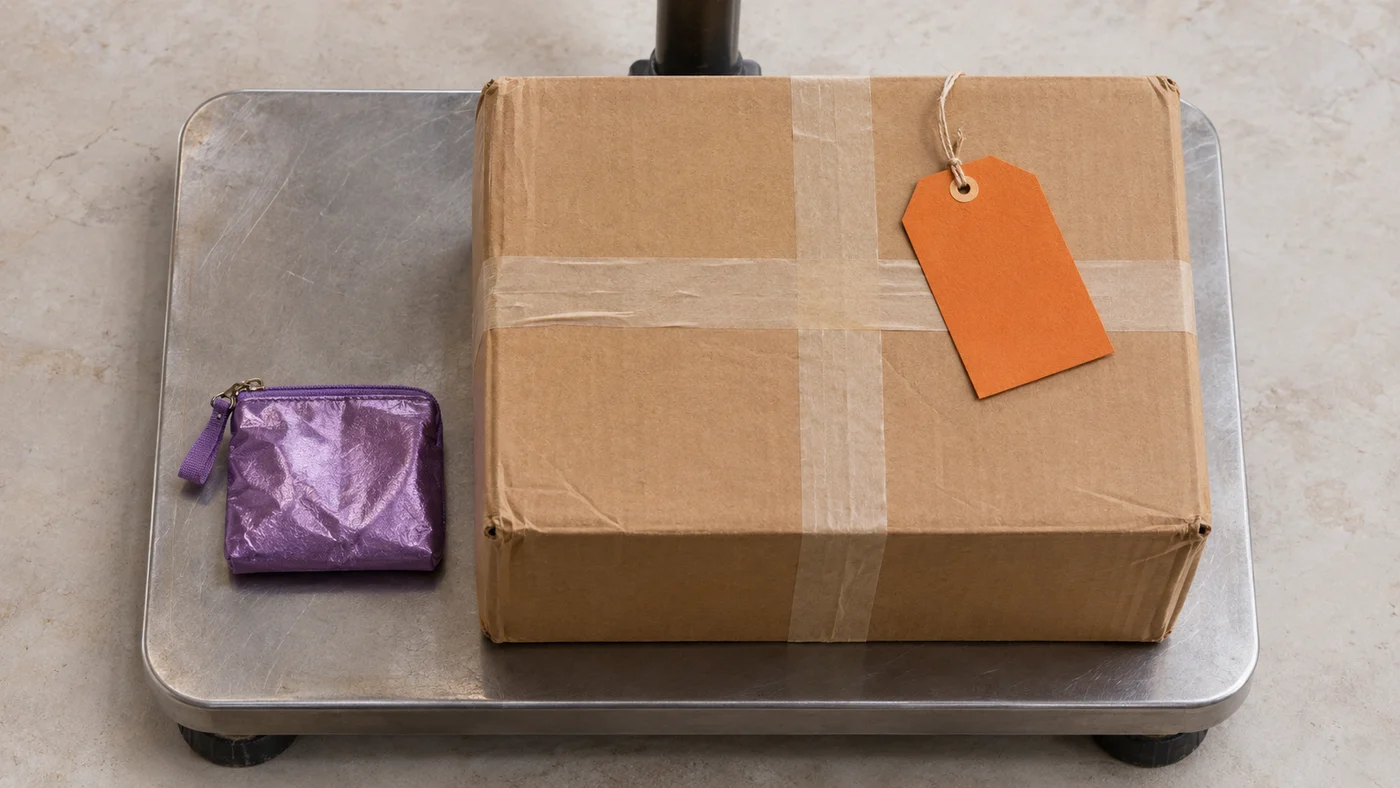

A boxed appliance and a small accessory can be in the same WooCommerce cart, even when they have different packing needs. Use shipping classes to assign those product groups and a Flat Rate method to decide what happens when they are bought together.
Assign classes to the products that need them
Under WooCommerce → Settings → Shipping → Classes, add labels for products with different delivery costs. Assign a class in the product’s Shipping panel. For a variable product, open the variation to check whether it uses the parent class or has its own. A class is a product group. It takes a shipping method to charge a rate.
Choose how the mixed cart is charged
Open the matched shipping zone and edit its Flat Rate method. Set the base cost and each class charge. Use the No shipping class cost field if you charge extra for unassigned products. Per Class adds the charges for the classes present. Per Order applies the highest applicable class charge. The base cost is added in either mode. With a split shipment, the method can calculate separate rates for separate packages.
Consider an example for a Malaysian kitchen-appliance store. In one package, a flat base cost of RM4 applies, boxed appliances add RM18, and accessories add RM3. Calculate one expected amount for each cart before opening checkout. Here are the amounts before shipping tax.
| Test cart | Per Class | Per Order |
|---|---|---|
| One accessory | RM7 | RM7 |
| One boxed appliance | RM22 | RM22 |
| One of each | RM25 | RM22 |
| Two accessories | RM7 | RM7 |
The last row stays RM7 because the setup uses fixed charges. Test quantity explicitly if you use a formula such as 3 * [qty] in the accessory class cost.
Test checkout totals and the unassigned product
- In a test cart, use an address inside the intended zone. Confirm the method name and the small-only, bulky-only and mixed totals.
- Test a variation and an unassigned product. If you want a charge for an unassigned product, set the No shipping class cost deliberately and test that cart too.
- Check two units of the same class and a second address. If the mixed cart shows RM25 when you expected RM22, open Calculation type first. If every cart shows a different amount, first verify which zone and Flat Rate method matched. Then check class assignment, quantity formulas, shipping tax and any extension that splits the cart into shipping packages.
For this example, Per Order matches a policy of charging for the boxed appliance when both items ship together. Choose Per Class if combining them actually adds the separate packing charge. Save the destination, method, product variation, quantity and displayed rate for each test. That gives someone else a route to reproduce a mismatch before you enable the change.
Frequently Asked Questions
Can a shipping class create a checkout method by itself?
No. It groups products. A compatible shipping method uses the class to calculate a rate.
Do two products in one class pay the class charge twice?
A fixed class charge applies once per represented class in a package when using Per Class. In Per Order, only the highest class charge contributes. Use a quantity formula when each unit should add a separate charge.
Does changing a class override the matched shipping zone?
No. The destination matches a zone first. Rates come from a method configured for that zone and the contents it is rating.