






If Google offers video verification for your Business Profile, choose a short route that shows where you work, that the business operates and that you manage it. The best route depends on whether customers visit your premises.
Choose evidence that fits your business
| Business type | What to show |
|---|---|
| Storefront or hybrid | Show the surrounding location, your permanent sign matching the profile name, and something staff can access, such as a workshop or stockroom. |
| Service-area business | Show recognizable surroundings, equipment or a branded vehicle, and proof you operate the business, such as performing part of the service or showing a business document that matches your profile. Keep sensitive details out of the frame. |
Use the business type that matches how you serve customers. If customers do not visit your address, see the service-area Business Profile guide.
Walk the route before recording
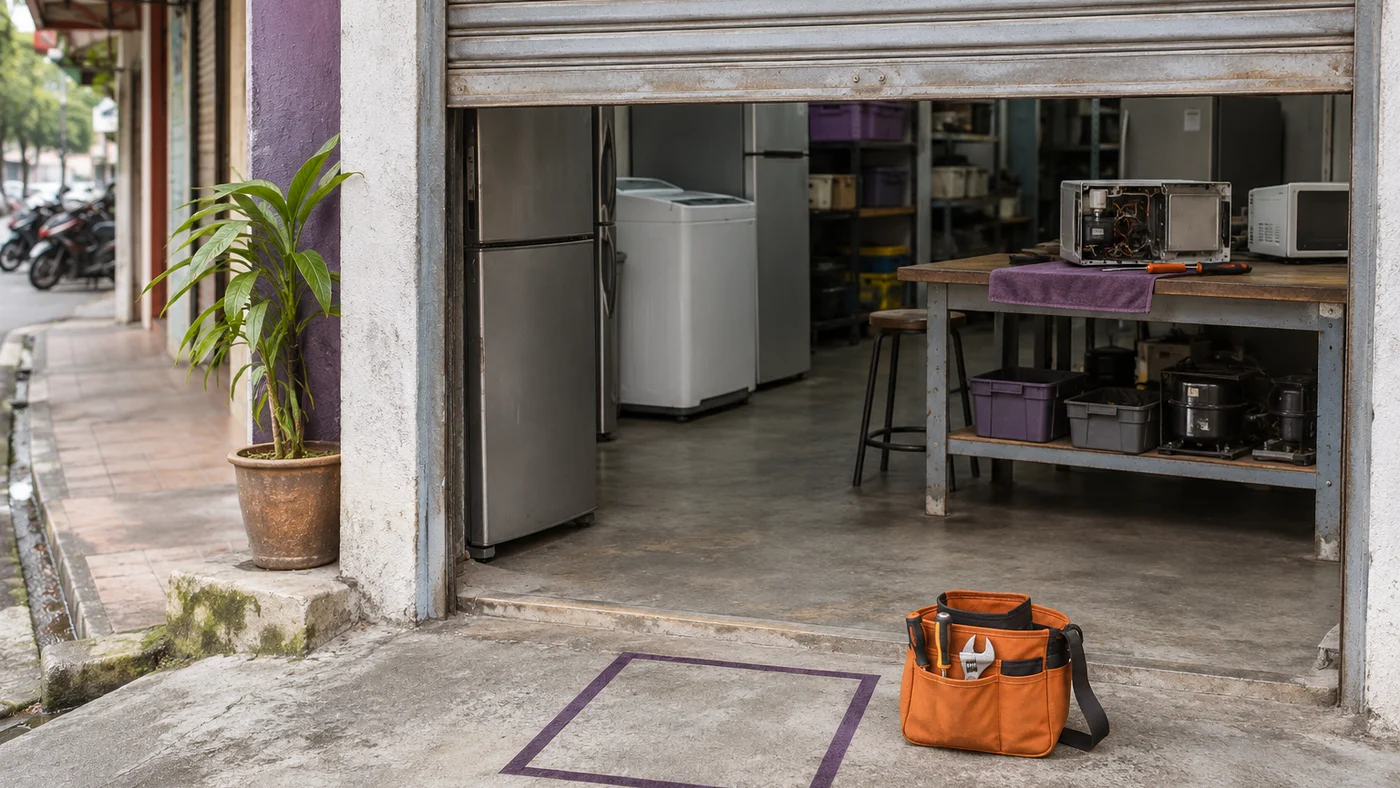
In a practice example for a Malaysian appliance repair shop, the owner starts on the pavement where a building marker is visible. They walk to the permanent shop sign, then unlock the staff workshop and show the workbench. Walk the route without recording first. Check the order of evidence: street context, permanent sign, then access to the workshop.
For a mobile repair business, an equivalent route might begin at a nearby street marker and continue to the operator opening the work van and showing the repair tools. Keep the shots specific to how your business operates. A vehicle or an invoice alone may leave the other parts unverified.
Before recording, clear customers, faces, screens and private records from the frame. Keep account, identification and tax numbers out of the video.
Record and check the review
- Use your phone and start from the video recording option in the correct Business Profile. Google determines which methods are available.
- Record one continuous, unedited video of at least 30 seconds. Capture and submit it in the profile flow.
- Check the result in the same profile. Google says the review can take up to five business days.
If the result is unsuccessful, open Review issues. Turn the stated reason into one missing shot in your next route. Record a fresh clip with the other evidence included. If the sign was missing, adjust the starting point; if management evidence was missing, include a genuine action that only staff can perform. Keep the useful evidence from the first clip in the new continuous recording.
If you cannot access the correct profile, check ownership and access before recording.
Frequently Asked Questions
What should I include in a Google verification video?
Show the location, evidence the business operates, and proof you manage it. Use evidence suitable for your business type and keep private data outside the frame.
Can I upload an edited or prerecorded video?
No. Record a continuous unedited clip from your phone through the Business Profile verification flow.
Why can’t I record a video in the profile?
Google determines the verification options available for each profile. Check you are in the right profile and follow the methods Google offers.