





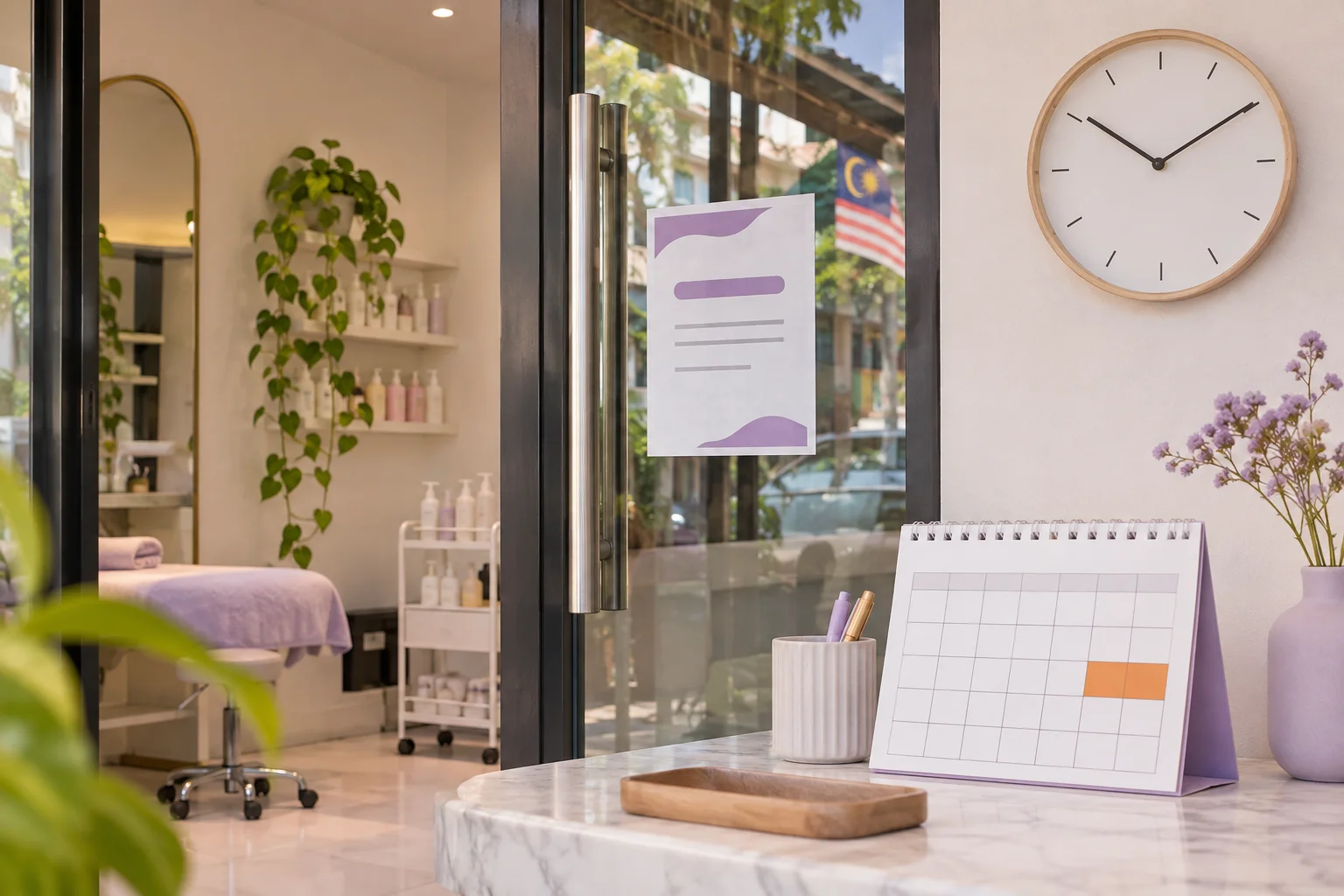

Special hours in Google Business Profile are date-specific changes to your normal opening schedule. Use them for a holiday, a short closure or a one-day change without rewriting the regular weekly hours.
The job is complete when the intended dates and intervals appear correctly on the public profile, and the business's other published schedules agree.
Choose the Right Hours Setting
| Change | Appropriate setting |
|---|---|
| The normal weekly schedule changes | Main business hours |
| A holiday or brief exception changes particular dates | Special hours |
| A service such as pickup has its own schedule | More hours, where supported |
| The business closes indefinitely or for an off-season | Temporarily closed |
Special hours require the Open with main hours setting. More hours is a separate feature for specific services, generally within the main operating schedule. It is not another name for holiday hours.
For longer temporary closures, read the guidance displayed for the relevant setting. Google's help pages differ on the boundary for exactly seven days, so do not rely on a universal seven-day rule. A permanent closure is a different business status.
Prepare the Dates Before Editing
Have the branch confirm each local date, opening interval and closure. Include breaks and any reopening later on the same day. Use the branch's dates, especially when an overseas manager maintains the profile.
For a beauty salon, a short holiday sheet could specify one date open from 10:00 to 14:00, the next date closed and a return to the usual schedule afterwards. Those are schedule instructions for that branch, not a change to every future week.
Google recommends confirming official-holiday hours even when they match the regular schedule. This reduces uncertainty for customers checking whether the normal hours still apply.
Enter and Save Special Hours
- Open the intended Business Profile with its managing account.
- Choose Edit profile → Hours.
- Open the edit control beside Special hours.
- Confirm a suggested holiday or add the specific date you need.
- Set the opening and closing intervals, or mark that date closed.
- Check every listed exception, then save.
Controls can vary between Search and Maps. Confirm the business and dates rather than following an unrelated branch's schedule. If Special hours is unavailable, check the main-hours setting first.
The profile setup guide covers the normal business details. Keep those stable while you enter a short exception.
Check Split and Overnight Sessions
If the salon opens in two sessions, enter both intervals. A single span from the morning opening to the evening closing would incorrectly imply it is open during the break.
An exception that continues into the following date needs particular care. Follow Google's overnight-entry instructions, split at midnight where required, and include any intended later opening on the second date. Do not assume the second date will retain all its usual hours automatically.
Read the result as a customer would: “Can I visit at this local time on this date?” That check is more useful than only confirming the editor accepted the entry.
Verify the Public Schedule
After the edit is processed, reopen the public listing and inspect the affected date and displayed intervals. If the edit is still pending, record that state rather than reporting the schedule as corrected.
Update the website's branch information, booking availability and relevant notices separately. Saving the profile does not synchronize these systems. The local information consistency guide explains how to maintain one dependable business record.
If Google changes the displayed hours again, inspect its update notice and the evidence elsewhere on the web. Google uses multiple sources for business information; an outdated website schedule can be part of the inconsistency.
Record unusual operating days when reviewing profile performance. Fewer directions requests during a closure should not automatically be interpreted as weaker marketing.
Frequently Asked Questions
How Do I Edit Holiday Hours in Google Business Profile?
Use Special hours under the profile's Hours settings. Select the date, enter the actual intervals or mark it closed, save and verify the public result after processing.
Should I Confirm a Holiday When the Hours Stay the Same?
Yes. Google recommends confirming official-holiday hours even when they match the regular schedule, so customers have clearer date-specific information.
Why Does Google Change My Business Hours?
Google can update information from multiple sources. Check the update notice, confirm the actual schedule and correct conflicting information on the website or other maintained records.
Is More Hours the Same as Special Hours?
No. More hours describes schedules for supported services such as pickup or delivery. Special hours changes particular calendar dates.